
The thumbnail in the screenshot was made in about a minute in the free Thumbnail Canvas: the demo sunset background, two title lines in big outlined type, and the honest part on the right, the same thumbnail shown at 10 percent size. It reads there. That is the whole standard, and here are the six checks that get a thumbnail to pass it.
If you came here looking for a youtube thumbnail checker, one limit first, stated plainly: Thumbnail Canvas is not a standalone checker. It cannot open a thumbnail you finished somewhere else and give it a score. It checks the thumbnail while you build it instead, with the live feed preview sitting beside the editor, and the six checks below are that process written out. If your art is already finished, the checks still name what to look for, but you will be judging the file yourself.
1. The checker step: run the 10 percent test first
The preview panel is the point of the tool: your thumbnail at feed size, live, while you edit. The tool's own note under it says it plainly: if the words fail here, they fail on YouTube too. Check it after every change, not once at the end.
2. Count your words out loud
Thumbnail text is a headline, not a title. The canvas allows three lines, and the example above uses two: five words total. If your draft needs a comma, it needs cutting. The shrink to fit option keeps long lines inside the margins, but shorter beats smaller every time.
3. Outline first, effects later
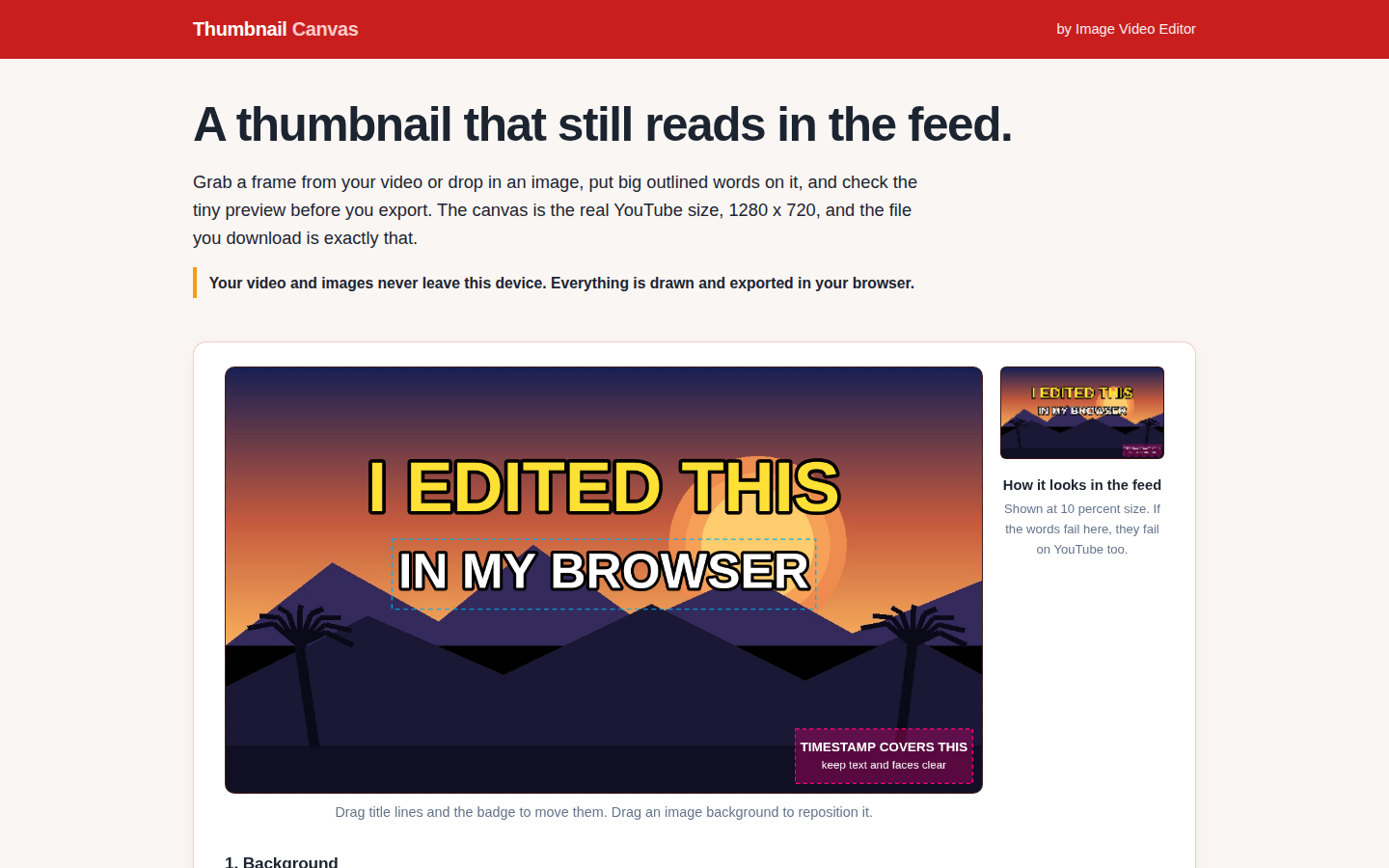
Readability at small size comes from the outline: the width slider and outline color separate your words from a busy frame before any shadow or glow gets a say. On the sunset demo, yellow with a heavy dark outline survives a bright gradient that would swallow plain white text.
4. Keep the timestamp corner empty
YouTube stamps the video duration over the bottom right corner. The editor marks that zone with a warning patch for a reason: text and faces placed there get covered on the real site. The guides are editor-only and never appear in the export.
5. Choose the background for contrast, not beauty
A grabbed frame, a dropped image and a flat color are all fine backgrounds if the words sit on a quiet patch. Drag an image background to reposition it until the title area calms down. This is also where the roundup of thumbnail maker apps and our repurposing apps list meet: clips from long videos often need a calmer frame than the video's busiest moment.
6. Export at exactly 1280 by 720, then look at the file
The export is exactly 1280 by 720 as PNG or JPG, the size YouTube's own custom thumbnail help recommends. Open the downloaded file once at small size before uploading; it is the same test as check 1, on the real artifact. Before paying for a design subscription to do this job, run the numbers through Before You Pay on our sister site, and use PicConvert when channel art or stills need converting. Two exports a day are free in the Thumbnail Canvas; new to it, the short explainer walks the editor first.