
The usual way to take a still from a video for a thumbnail is a screenshot: pause the player, capture the window, crop the black bars, and hope the result is close to the right size. It rarely is. In the free Thumbnail Canvas, the frame grab is not a detour before the design. It is the first step of the design itself: you grab a frame from a video for a YouTube thumbnail, and that frame lands as the background of a canvas that is already exactly 1280 by 720. Here is the whole run, step by step.
Step 1: Load a video you have the rights to use
Open the Thumbnail Canvas and load your video file. Use a video you made or one you have clear rights to reuse: your own uploads, client work you are packaging, or footage licensed to you. Everything runs in your browser, on your device. The video is never uploaded to a server, which matters when the footage is an unpublished edit or a client's file.
Step 2: Scrub to the moment and grab the frame
Play or scrub through the video and grab the frame you want. The grab keeps the frame at the video's native resolution, not at the size of the player window on your screen, so a 1080p or 4K source gives the editor real pixels to work with. Take two or three candidate frames while you are here: the cost of a spare grab is a click, and the better expression is often a second away from the obvious one. You are not exporting a still to decorate later; you use a video frame as a thumbnail background directly, inside the editor.
Step 3: Fit the frame on the true 1280x720 canvas
The grabbed frame becomes the background of the canvas, cover-fit so it fills the full 1280 by 720 with no bars. Drag it to reposition, and zoom from 1 to 3x to tighten the shot. The rule of thirds grid, an editor-only guide, helps you place the subject off-center so the title lines get a quieter side of the frame to sit on. Nothing about the guides is burned in: they exist only while you edit.
Step 4: Compose around the timestamp corner
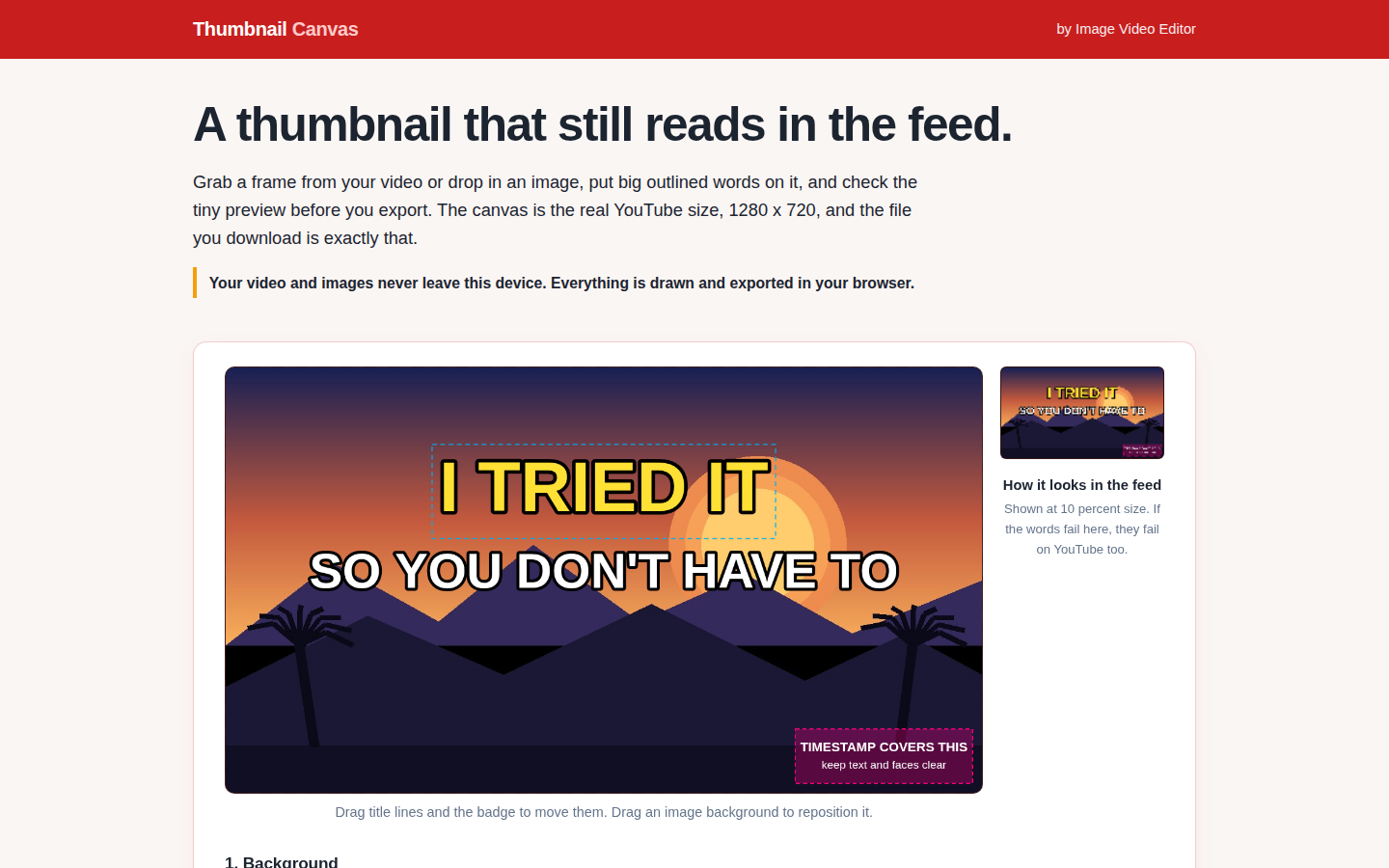
YouTube stamps the video's duration over the bottom right corner of every thumbnail. The editor marks that spot with a warning patch, 300 by 92 pixels in the corner, so you can see exactly what will be covered. Keep faces, eyes, and the end of your title text out of that patch. A frame that looks perfect full-screen can lose its subject to a duration stamp you forgot was coming.
Step 5: Add title lines, then check the frame at 10 percent size
Add up to three title lines and style them: size, font, color, bold, and an outline that separates the words from a busy frame. This post is about the grab, not the typography, so for the full styling walkthrough read the Thumbnail Canvas walkthrough next. Then look at the feed preview, which shows your thumbnail at 10 percent size while you edit. Faces should still read as faces and words as words. For the complete pre-upload routine, the companion post runs six thumbnail checks to run at 10 percent size; here it is one step, not the whole job.
Step 6: Export at exactly 1280 by 720
Export a PNG or JPG at exactly 1280 by 720, the size you designed at, with no resampling step between the editor and the file. The export carries no watermark. Editing and previews are always free; two exports a day are free, and after that an email unlocks unlimited exports for the rest of the day.
Pick a frame worth grabbing
The grab is a tool; the choice is the craft. Frames that carry a thumbnail tend to share three things. First, a face mid-expression beats a face at rest: the moment just after a reaction starts reads at small sizes, a neutral talking head does not. Second, a motion moment, a hand raised, a door half open, a product mid-turn, promises the click better than the settled shot a second later. Third, contrast: look for a frame where the subject sits against a calmer patch of background, because your title lines need somewhere quiet to land. If every candidate frame is busy edge to edge, zoom in. A tighter crop at 2x is usually a stronger background than the full wide shot.
Why not just screenshot it?
The screenshot route fails on arithmetic. A player window shows the video at display size, often well under the source resolution, and a screenshot captures that small rendering: a 854 by 480 player gives you an 854 by 480 still, which then has to be upscaled to 1280 by 720 and arrives soft. Grab the window with the player chrome showing and you crop by eye; crop slightly wrong and the aspect drifts, leaving thin bars or a stretched frame. Working from the grabbed frame inside the editor skips all of it: native resolution in, exact size out, and the composition you approved is the composition in the file.
The honest limits
A grabbed frame is a starting background, not finished art. It carries the video's own limits: a frame from a heavily compressed upload is a compressed frame, and a dim scene stays dim. The Canvas gives you the frame, the fit, the title lines, and the size check; it will not relight your footage or invent the expression you did not capture. And if you would rather compare the wider field of apps before committing to one workflow, our roundup of thumbnail maker apps covers the alternatives. But when the still you need is already inside your video, grabbing it at full resolution and designing at the exact export size is the shortest honest path from footage to thumbnail.